How to restart, force restart and reset all iPhone models
- Restarting your iPhone can fix glitches.
- To restart, press and hold Power and Volume buttons, slide to power off, and press Power again.
- If that doesn't work, try a force restart by pressing Volume Up, Volume Down, and Power.
- If that fails, reset to factory settings by going to Settings > General > Reset > Erase All Content and Settings.
- Remember to back up your data before resetting.
Here's how to restart an iPhone:
For iPhone X, iPhone 11, iPhone 12, iPhone 13, and iPhone 14:
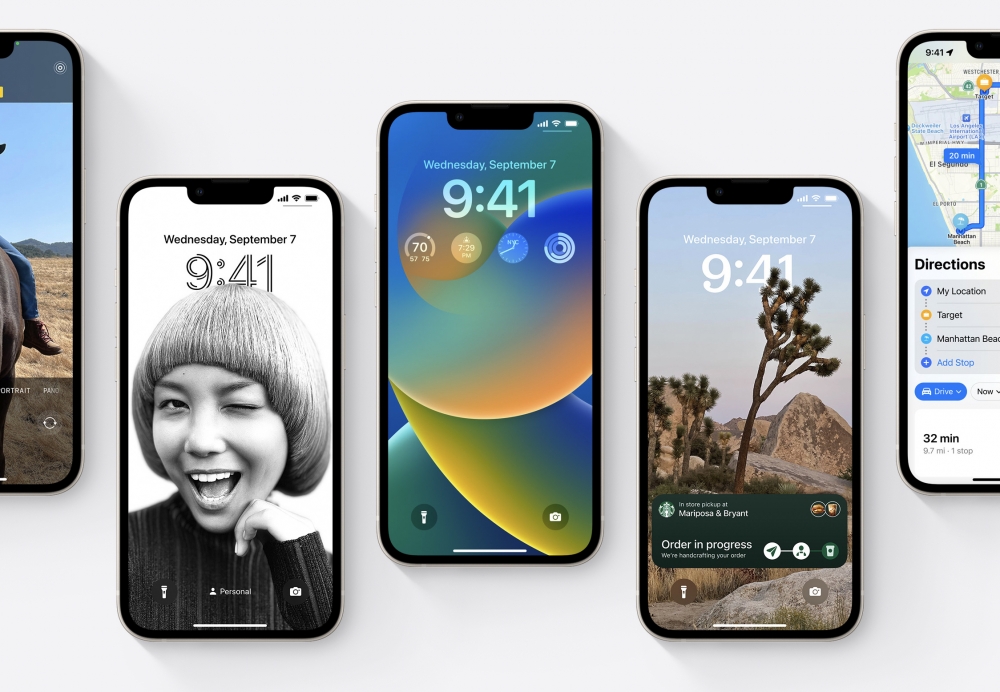 Image credit: Apple Inc.
- Press and hold both the Power button and either of the Volume buttons.
- When a slider labeled 'slide to power off' appears at the top of the screen, drag it to the right.
- Wait a few moments for the iPhone to completely turn off and for the screen to go black.
- Press and hold the Power button until the Apple logo appears.
For iPhone SE, iPhone 8, and earlier:
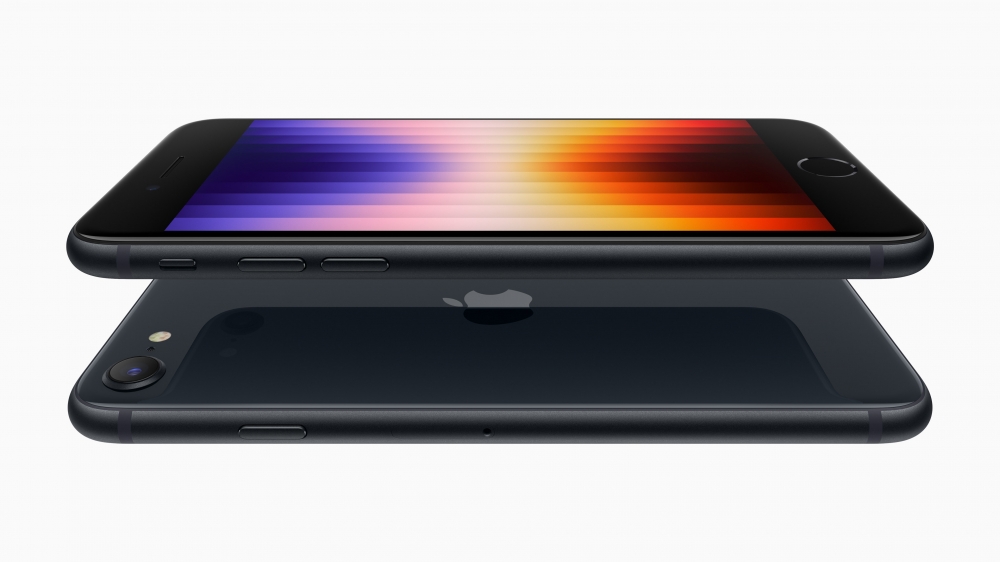 Image credit: Apple Inc.
- Press and hold the Power button.
- When the 'slide to power off' appears at the top of the screen, drag it to the right.
- Wait for your iPhone to fully turn off and for the screen to go black.
- Press the Power button until the Apple logo appears.
If a simple restart doesn't work, try a force restart. To do this, press Volume Up, Volume Down, and then Power. Hold the Power button until the Apple logo appears. This will force your iPhone to turn off, even if it's frozen.
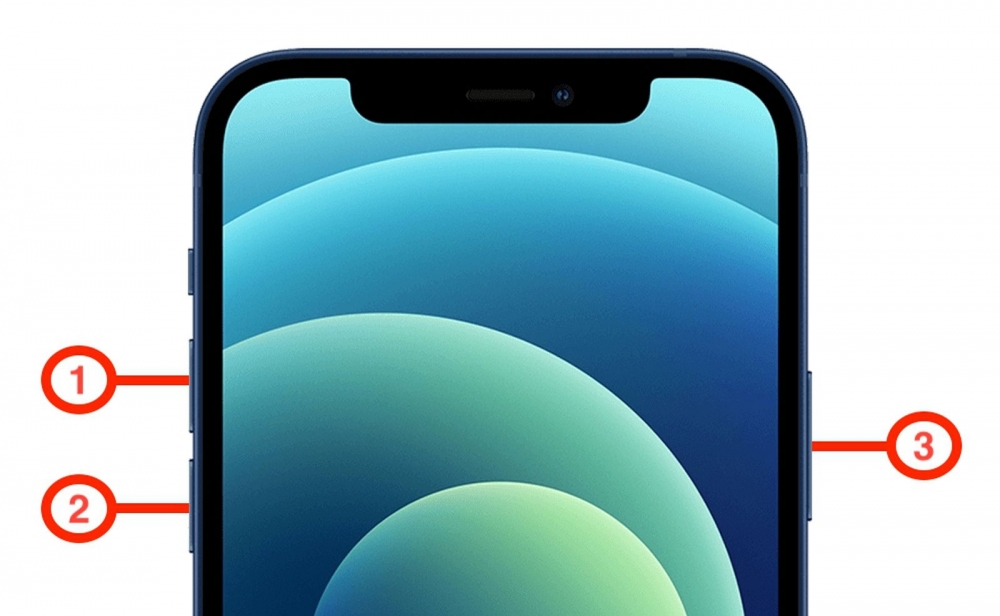 Image credit: MacRumors
If neither of these methods work, you can try resetting your iPhone to factory settings. This will erase all of your data, so make sure to back up your iPhone before doing this. To reset your iPhone to factory settings, go to Settings > General > Reset > Erase All Content and Settings.
Image credit: MacRumors
If neither of these methods work, you can try resetting your iPhone to factory settings. This will erase all of your data, so make sure to back up your iPhone before doing this. To reset your iPhone to factory settings, go to Settings > General > Reset > Erase All Content and Settings.
Recommended by the editors:
- No More September iPhones? Apple's Strategy Shift Changes Everything
- iPhone 18 Rumors: Apple Reportedly Testing Under Display Face ID
- Foldable iPhone Could Be Apple’s Most Expensive Phone Ever At $2,399
- 200+ Best Winter Wallpapers for iPhone & Android (Free 4K/HD)
- iPhone Fold and iPhone Air 2: Rumors, Release Date, Design, Cameras, and More
Published to Apple Scoop on 4th March, 2023.