What to Do When Your iPhone Detects Liquid in the Charging Port (Lightning + USB — C)
- Got the "Liquid Detected" warning? Here’s why you shouldn’t just hit "Override."
- There’s a smarter way to save your iPhone from moisture mayhem—follow these easy steps and you'll never have to worry about this alert ever again!
- Read on to discover the best things to do when you get the "Liquid Detected" warning.
One such alert that can throw a wrench in your day is the dreaded "Liquid Detected in Lightning Connector" message on your iPhone. Before you hit the panic button, let's break down what this alert means and how to handle it effectively.
Understanding the Alert
The "Liquid Detected in Lightning Connector" message is Apple’s way of telling you that moisture has found its way into your iPhone's charging port or an accessory connected to it. Despite iPhones being water-resistant, they are not completely immune to liquid damage—especially when it comes to the sensitive pins within the Lightning port. Moisture in this area can short-circuit your device if it’s not handled properly.
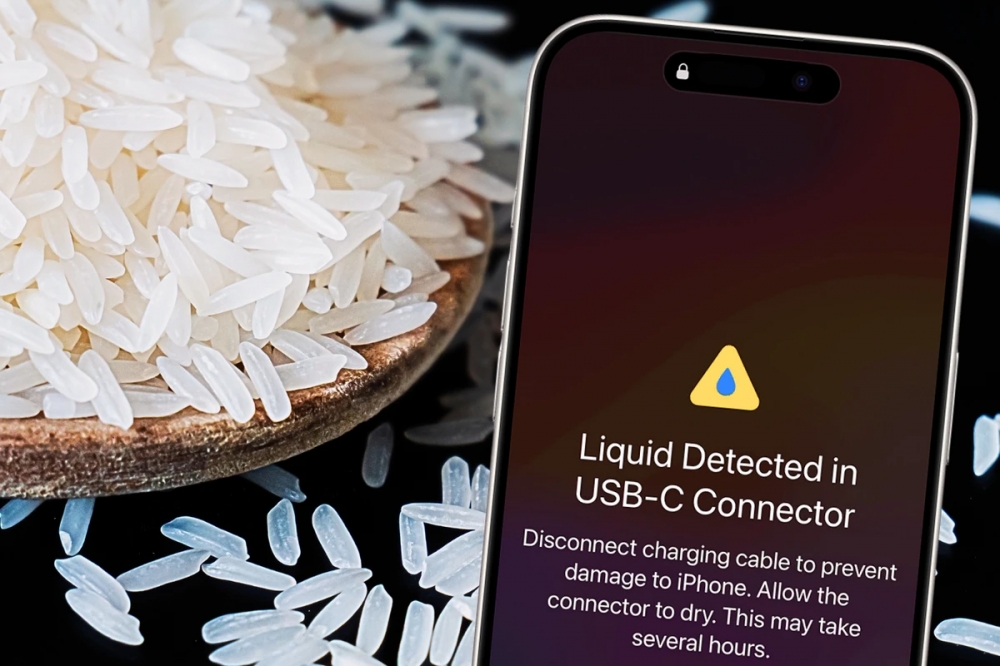 Photo via GB News // What do you do when you see the dreaded 'liquid detected' alert on your iPhone? Well, one thing is for certain — definitely don't try the rice method.
Common Causes of the Alert
- Direct Exposure to Water: Obvious causes include dropping your iPhone in water or spilling a drink on it.
- Humidity and Condensation: Less obvious is moisture from a steamy bathroom after a hot shower or being in a humid environment.
- Damp Accessories: A slightly wet charging cable or earphones can also trigger the alert.
What to Do When You See the Alert
The moment this alert pops up, disconnect any accessories immediately. Do not be tempted to override the warning or dry the port using aggressive methods like a hair dryer or compressed air. These could push the water further into the device or even damage the internal components.
Steps to Dry the Lightning Port
- Turn Off Your iPhone: This reduces the risk of short-circuiting.
- Air Drying: Place your iPhone on a flat, clean surface with the Lightning port facing down. This allows gravity to help drain any liquid.
- Allow Time: Depending on how much moisture is present, leave your phone to dry for several hours. Some users have found it takes up to 24 hours for the phone to fully dry.
- Testing: After sufficient drying time, reconnect your charger to see if the alert reappears. If it does, your iPhone might need more time to dry.
What Not to Do
There’s a list of things that might seem like good ideas in the moment but can actually cause more harm than good:
- Do not use external heat sources like a hairdryer; this can damage the battery.
- Avoid inserting objects into the port, such as cotton swabs or paper towels, as this can push moisture deeper into the device.
- Skip the rice method. Though it's a popular myth, it can leave dust and particles in your phone.
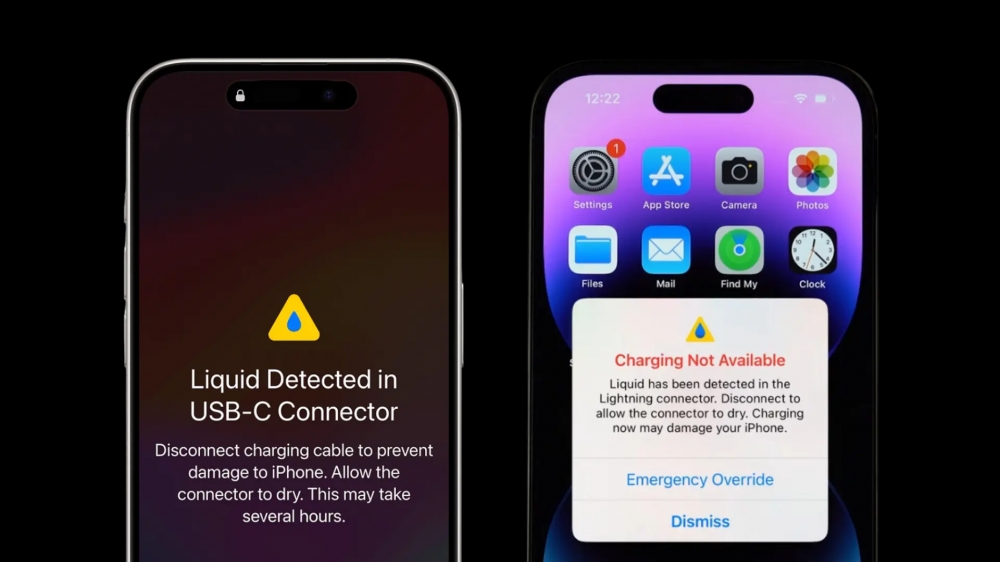 Photo via Fix My Speaker // Follow these simple steps if you see the 'liquid detected' popup alert on your iPhone.
Emergency Override: A Risky Option
If you’re in a pinch and need to charge your phone, iPhone gives you an option called Emergency Override. This bypasses the alert and allows the device to charge, even if moisture is detected. However, this is not without risk. Charging your iPhone while moisture is still present can cause significant damage to both the phone and the accessory.
Final Thoughts
Apple’s "Liquid Detected in Lightning Connector" alert is there for a reason—to protect your iPhone from potential liquid damage. Following the proper steps to dry your device will increase the chances of preventing long-term damage. Remember, patience is key. And if in doubt, consider getting a professional diagnostic at a certified repair shop.
Resources:
For more tips on how to care for your iPhone and prevent damage, check out resources from trusted sources like Apple’s official support page.
Recommended by the editors:
- iPhone 17: 10 Hidden Features You Never Knew Existed
- Apple Inc: The 11 Biggest Scandals of All Time
- Why Did Apple Discontinue the iPod?
- 8 Reasons Why Apple Products Are So Expensive
- Apple’s 20th Anniversary Macintosh: What Went Wrong?
Published to Apple Scoop on 25th August, 2024.